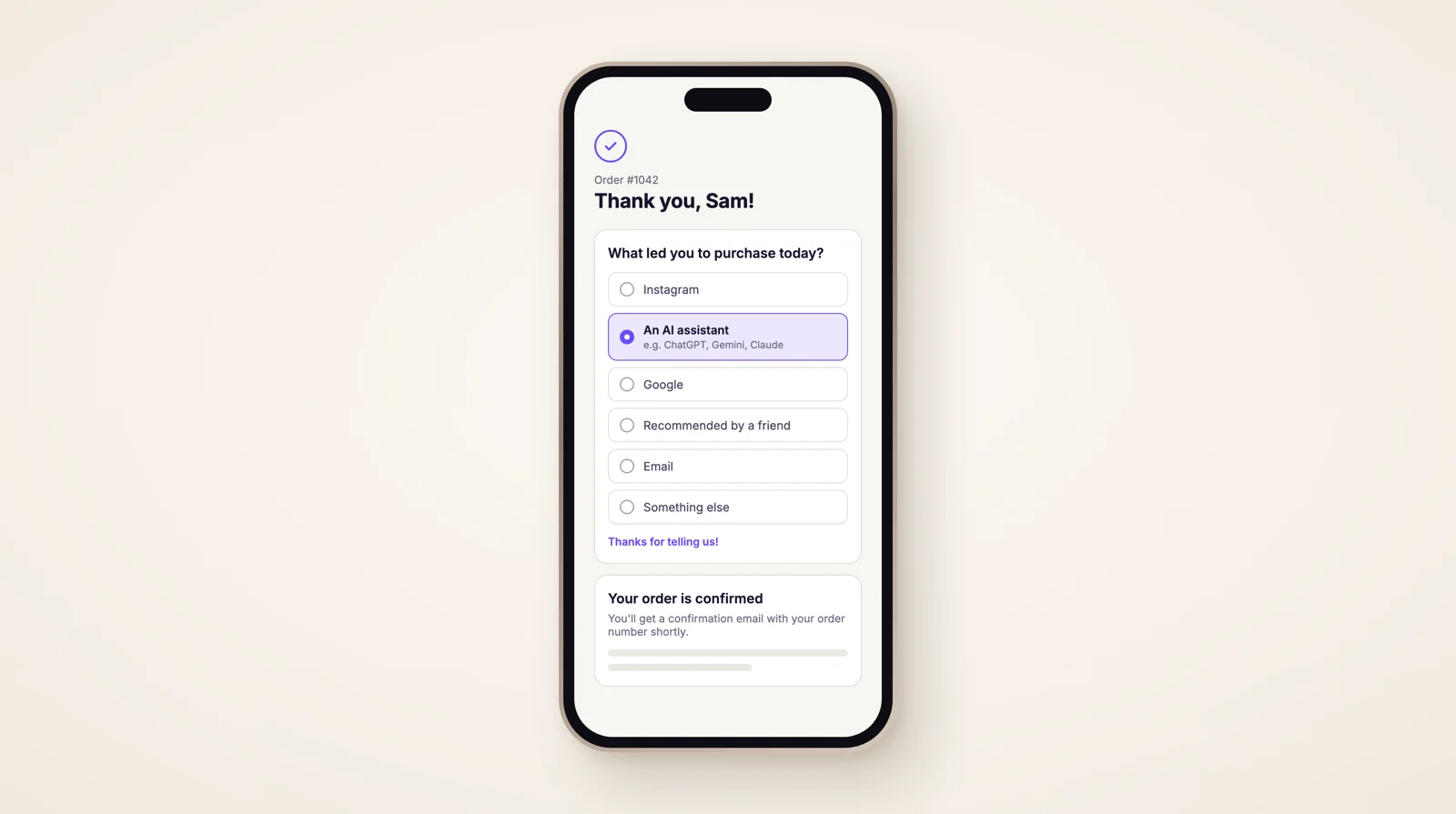
When someone asks ChatGPT, Gemini or Claude which brand to buy and then visits your store, your analytics rarely says so. Smart Checkout Widgets now has a post-purchase survey: one question on the Shopify Thank you page, with each answer and the revenue behind it on the app's Results page. It works on every Shopify plan from Basic up and comes with every Smart Checkout Widgets plan.
Why AI-assistant sales are hard to see
An assistant like ChatGPT, Gemini, Claude or Perplexity can recommend your brand without the shopper ever clicking a link to your store. They read the answer, then type your address or search your brand name. Analytics records that visit as direct traffic or branded search, and the assistant that sent them gets no credit.
You can't fix that with tracking tags, because there's no click to tag. You can ask the buyer, though. The Thank you page is a good place for it, because every buyer sees it right after paying.
- Asks an assistant"What's a good linen tote?" The answer names your brand.
- Visits your storeTypes your address or searches your name. Analytics records direct or branded search.
- Answers the surveyPicks "An AI assistant" on the Thank you page.
What the shopper sees
Under the order confirmation, the survey asks one question. The default is What led you to purchase today?, with these answers:
- An AI assistant (e.g. ChatGPT, Gemini, Claude)
- TikTok
- Recommended by a friend
- Recommended by an expert or professional
- A link from a website or blog
- I already knew the brand
The shopper picks one. Answering is optional and nothing is preselected, so someone who skips the question isn't counted for any answer. After they answer, the survey is replaced by a short thank-you line. One answer is kept per checkout, so no order is counted twice.
By default the answers appear in a random order for each shopper. That way the first answer in your list doesn't win just because of where it sits. You can also add a "Something else" answer where the shopper types their own. It always comes last, whatever the order of the rest.
What you can change
- The question.
- The answers, one per line, up to 20.
- Whether the answers are shuffled for each shopper.
- Whether to show "Something else", and what it's called.
- The thank-you line shoppers see after answering.
Reading the results
Open Results in the app and pick the last 7, 30 or 90 days. For each answer you see how many shoppers picked it, its share of all answers, the revenue of those orders (the order total in your store currency) and its share of that revenue. The page also lists the latest answers shoppers typed in themselves. The same page shows your gift and upsell results.
Look at revenue as well as counts. An answer fewer shoppers pick can still bring in more revenue if their orders are bigger.
How much to trust the answers
A survey answer is what the shopper remembers, and memory is patchy. Someone who saw an Instagram post, asked an assistant about it and then searched your name could honestly pick any of the three. If their real answer isn't listed, they'll pick whichever comes closest. So read the answers as one signal and keep them next to your analytics.
It helps to compare the two. Some merchants find more shoppers credit an AI assistant than their analytics attributes to any AI source. That gap hints at how much of your direct and branded search traffic started in a chat.
A trend over a few months tells you more than one week of answers. If the AI assistant share keeps growing while your other answers hold steady, that's worth knowing even if the exact share is a little off.
Tips for a survey people answer
- Keep the list short enough to read on a phone, even though you can have up to 20 answers.
- Keep an AI assistant answer, with a few names in brackets so shoppers know what it covers.
- Leave shuffling on.
- Keep "Something else", and read the typed answers every few weeks. If the same source keeps coming up, give it its own answer.
- Change the answers rarely. Every change makes the periods before and after harder to compare.
- Compare shares over 30 or 90 days, and check the revenue behind each answer as well as how often it's picked.
Set it up
- In Smart Checkout Widgets, open Widgets and create a Post-purchase survey. Edit the question and answers if you want to, and save.
- In Shopify, go to Settings > Checkout > Customize and switch to the Thank you page.
- Click Add block, choose Post-purchase survey and save. There's no widget ID to paste.
Answers you give while trying it in the checkout editor preview are never saved, so testing won't skew your numbers. The survey docs have the details.
Which plans it works on
Thank you page blocks don't need Shopify Plus, so the survey works on Basic, Shopify, Advanced and Plus. Shopify's Starter plan can't run Thank you page blocks, so it isn't available there. It's included on every Smart Checkout Widgets plan and doesn't ask for any extra post-purchase permissions. If you're deciding what else belongs on that page, see what to show on the Thank you and Order status pages.
Frequently asked questions
Does the post-purchase survey need Shopify Plus?
No. It runs on the Thank you page, and Thank you page blocks work on Basic, Shopify, Advanced and Plus. Shopify's Starter plan can't run Thank you page blocks.
Why include an AI assistant answer?
A shopper who asks ChatGPT, Gemini or Claude for a recommendation and then types your address or searches your brand usually shows up as direct or branded search in analytics. Asking them is a simple way to see that channel.
Can shoppers skip the question?
Yes. Answering is optional and nothing is preselected, so a shopper who skips it isn't counted for any answer.
Can one order be counted twice?
No. One answer is kept per checkout, and once a shopper answers, the survey is replaced by your thank-you line.
How accurate are the answers?
They are what shoppers remember. People misremember and pick the nearest option, so read the answers next to your analytics and watch how the shares change over time.