
Flowers, cakes and sofas all need someone at home on the right day. Shopify has no calendar for that, so the day usually ends up in the order note or in an email the next morning.
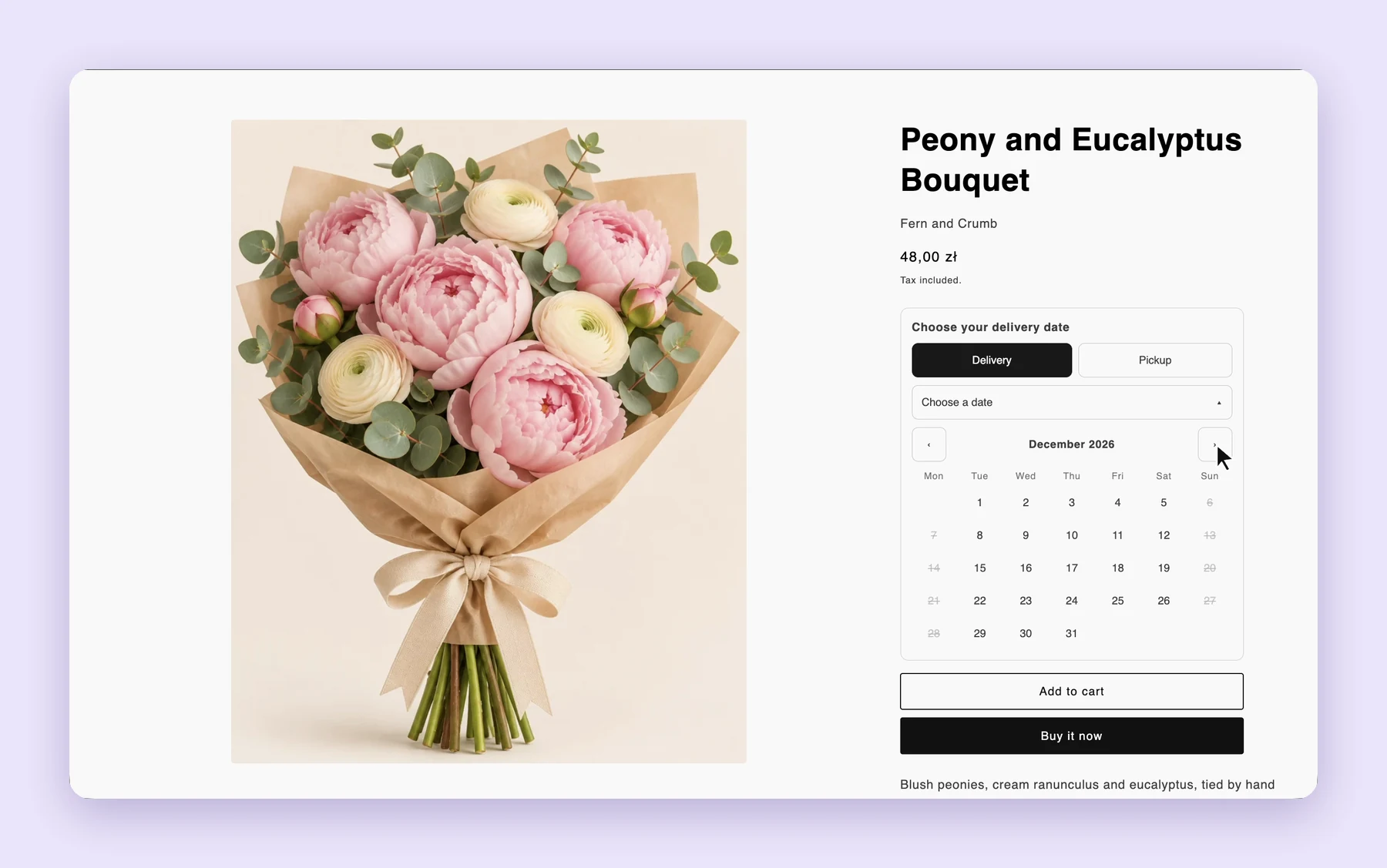
Smart Checkout Widgets adds one to your product pages, cart page and cart drawer. The calendar lives in your theme, and the part that runs in checkout uses Shopify's validation rules, which are open to every plan.

Plans
It works on every Shopify plan, Basic included. In the app it is part of Growth, Advanced and Pro.
What the customer does
They choose how they want the order (shipping, local delivery or pickup, whichever you offer) and then a day. The choice follows them from the product page to the cart drawer and the cart page, and they can change it in any of them.
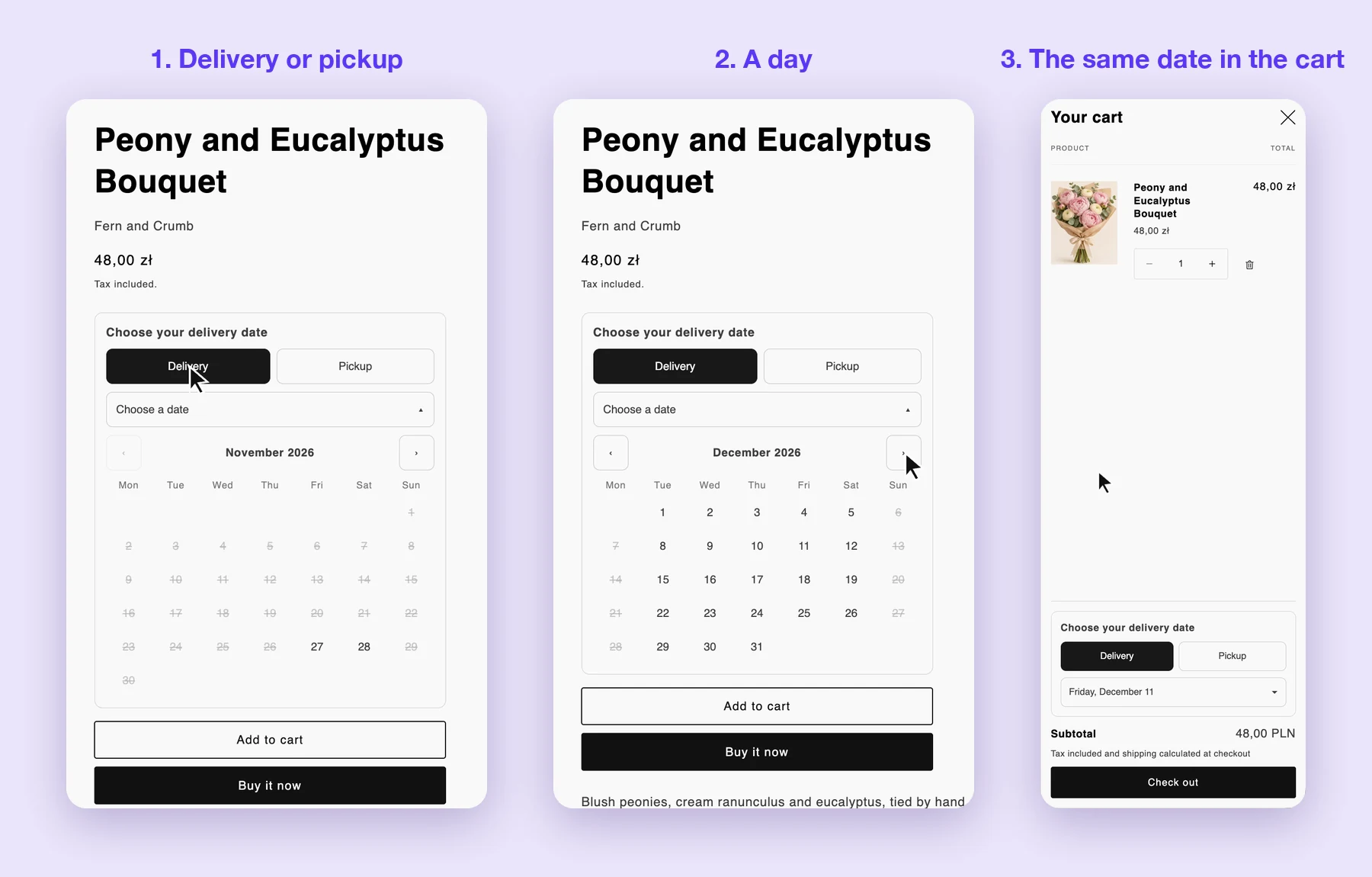
You see the method and the date on the order in Shopify admin, under Additional details. Orders placed with Buy it now carry them on the product line instead, because that button skips the cart. After the purchase, the date can show on the Thank you and Order status pages.
What you decide
| Setting | What it does |
|---|---|
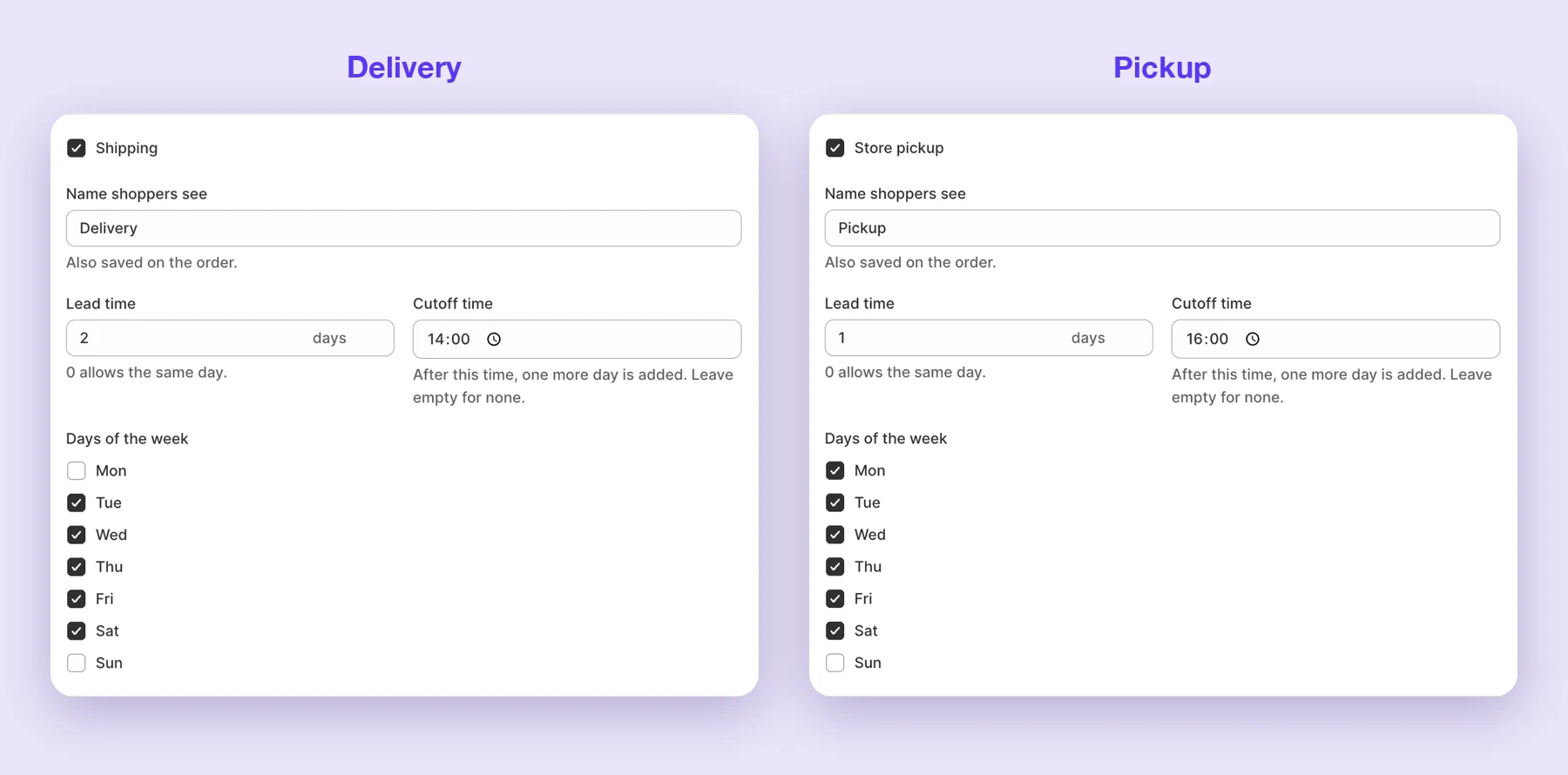
| Lead time | How many days ahead the first date is. 0 allows the same day. |
| Cutoff time | After this time, one more day is added. It uses your store's time zone, wherever the customer is. |
| Days of the week | Which days you deliver or open for pickup. |
| Closed dates | Holidays and days you are fully booked. |
| How far ahead | The last day a customer can book. |
Lead time, cutoff and days of the week are set separately for shipping, local delivery and pickup, so a shop can offer pickup tomorrow and delivery in two days.
Add it to your theme
- Open Delivery Dates in the app, switch the calendar on and save.
- Click Switch on in theme, then save the theme.
- Add the Delivery date block to the Thank you and Order status pages in the checkout editor.
The calendar finds your Check out and Add to cart buttons and goes above them. We tried it on 22 theme demo stores on desktop and phone, including Dawn, Horizon, Prestige, Impulse, Warehouse, Turbo and Empire.
If it lands in the wrong place, enter a class name or ID from your theme in the app embed settings and choose before, after or inside it. Headless storefronts won't work, since they have no theme to put it in.
Should checkout require a date?
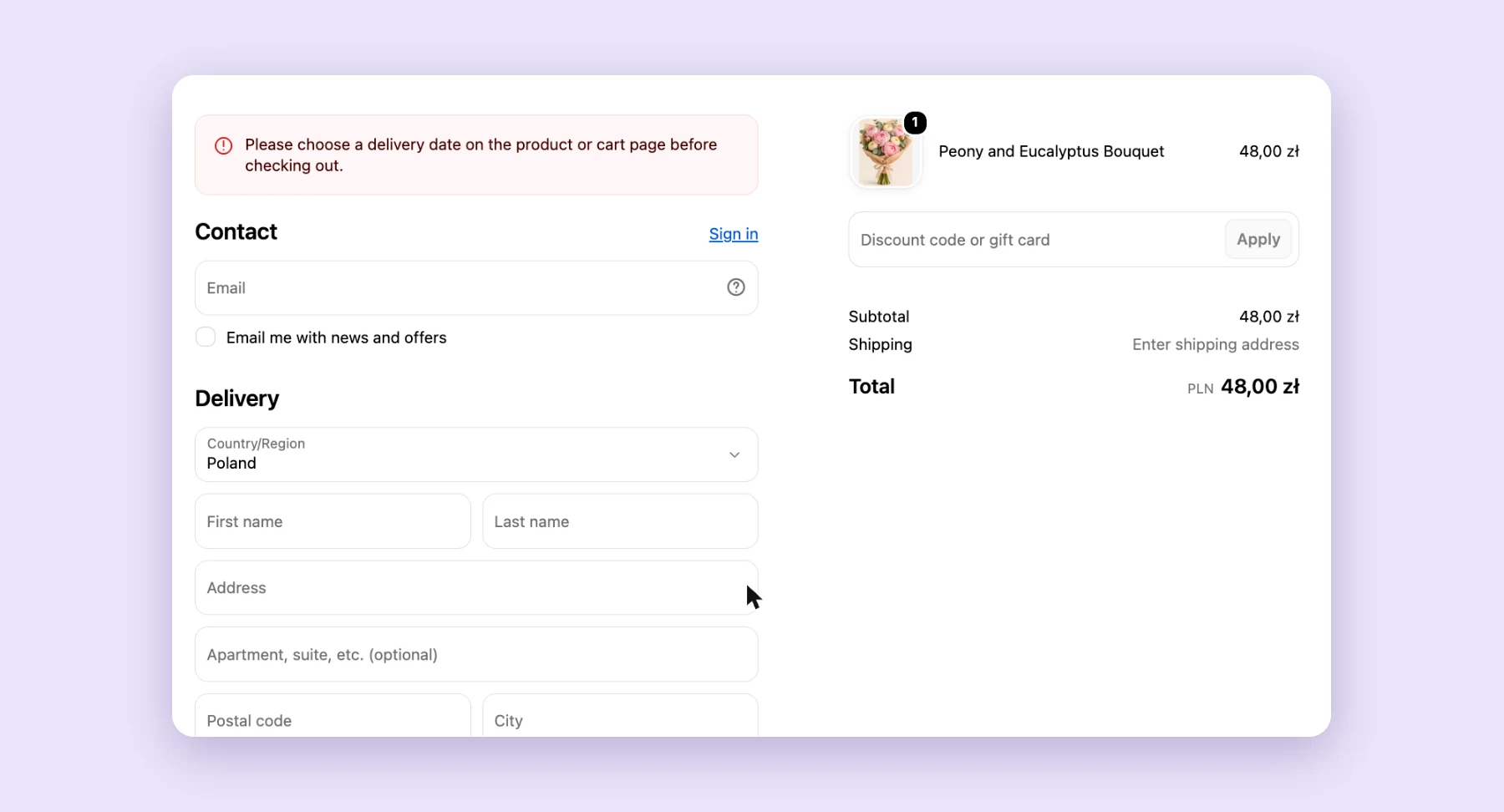
You can leave the date optional or let checkout refuse an order without one. With the check on, checkout also refuses a date that has passed, and a delivery date on an order the customer switches to pickup.
Before you turn it on:
- Every order with a physical product will need a date, including draft orders, checkout links and other online sales channels. Point of sale is not checked.
- Keep the calendar on your product pages, because Buy it now skips the cart.
- If you offer Shop Pay, Apple Pay, Google Pay or PayPal, try each button once. Shopify says the check covers express checkouts, and we have not tested those buttons ourselves yet.
If your paid plan ends, the calendar and the check switch off together, so a missing calendar can't leave customers stuck at checkout.
Shopify's own estimates
Delivery estimates don't know which date the customer chose. In our test the customer picked 27 November while the rate at checkout said 1 to 3 December. To hide those dates, go to Settings, then Shipping and delivery, and set Delivery estimates to Off. Your rates may still show a transit time.
More than one pickup location
The calendar asks for pickup and a day. Customers choose the location itself at checkout, where Shopify lists the ones you have switched on for pickup. All locations share the same lead time, cutoff and opening days, so set them for the location with the fewest hours.
What it doesn't do yet
There are no time slots, daily order limits, extra charges for a date or pickup days per location. One date covers the whole cart. If you sell flowers or cakes, the florist and bakery guide has worked examples.
Frequently asked questions
Does Shopify have a built-in delivery date picker?
No. Shopify can show estimated delivery dates, but customers can't choose a day without an app.
Does a delivery date picker work without Shopify Plus?
Yes. The calendar runs in your theme and the checkout check is a Shopify validation rule, so both work on every Shopify plan. The feature is part of the app's Growth, Advanced and Pro plans.
Where do I see the date?
On the order in Shopify admin, under Additional details. For Buy it now orders it is on the product line.
Can I require a date before checkout?
Yes. It is off by default. When you switch it on, checkout refuses orders with a physical product that have no valid date.
Can each pickup location have its own days?
Not yet. Customers choose the location at checkout, and every location uses the same pickup days, lead time and cutoff.
Which themes does it work with?
We tried 22 theme demo stores, including Dawn and Horizon. If it lands in the wrong place, you can point it at a class name or ID in your theme. Headless storefronts are not supported.