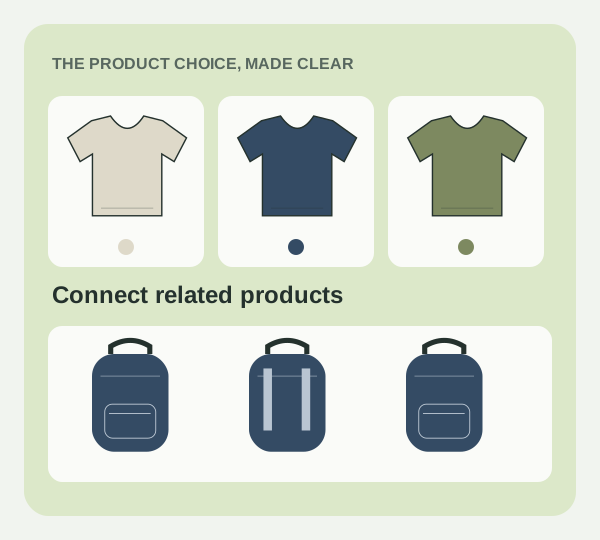
A shopper chooses the blue bag. The gallery still shows the black one. Another wants the same shirt in olive, but that listing is somewhere else in the store. Small gaps like these make a simple choice harder than it needs to be.
Both apps are developed by Craftshift, which builds Shopify tools for product images, swatches and catalog management. This guide uses their public product descriptions, checked September 8, 2026. The illustrations below are conceptual examples, not app screenshots.
Start with how your products are organised
Are white, navy and olive shirts separate products? Or are they variants inside one product? Before installing anything, open a representative item in Shopify and map how its options are stored.
| What needs fixing | App to consider |
|---|---|
| Related products are separate listings and difficult to browse between | Rubik Combined Listings |
| The gallery mixes photos from several variants | Rubik Variant Images |
Connect separate products with Rubik Combined Listings
Rubik Combined Listings Swatch links separate products through colour or image swatches on product pages and product cards. Its listing also describes bulk grouping, swatch customisation and controls for unavailable products.
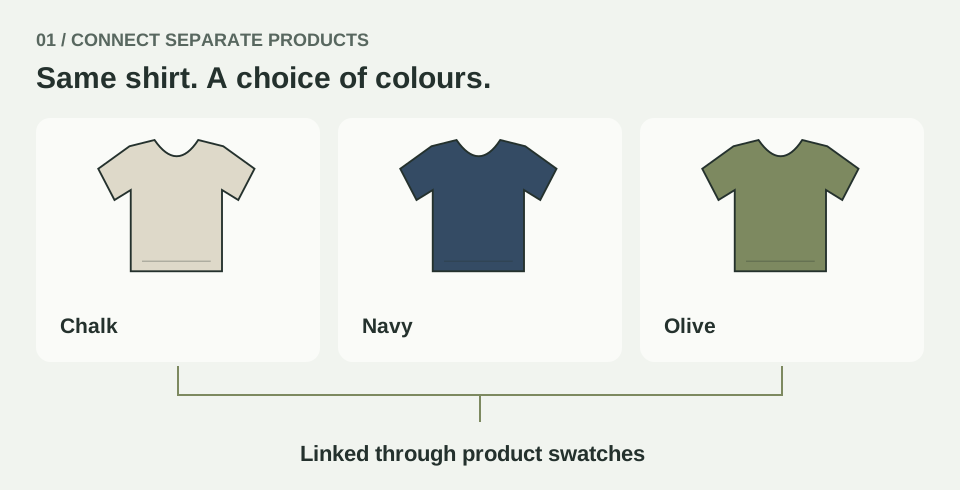
Imagine a homeware store selling one cushion design in several fabrics. Each fabric has its own product listing. Showing those alternatives together would let a shopper explore another version without returning to the collection and searching again.
Build groups around choices customers would recognise as versions of the same item. A different colour of the same shirt fits that pattern. An unrelated shirt usually belongs in a recommendation instead.
Match the gallery with Rubik Variant Images
Rubik Variant Images & Swatch lets merchants assign multiple photos to variants and show images relevant to the selected option. It also supports shared images across options and colour or image swatches.
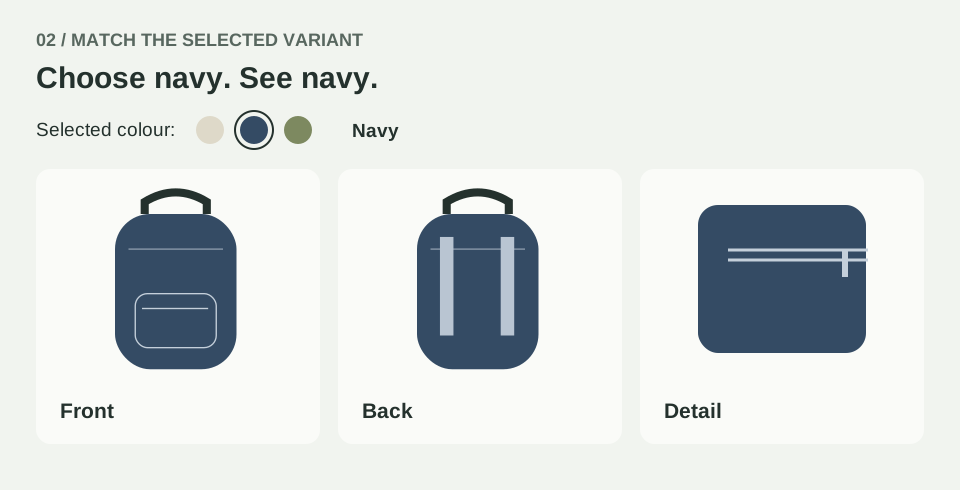
Think of a backpack available in four colours, each photographed from several angles. After a customer chooses navy, the useful next view is the navy backpack’s back or interior. A common dimensions graphic can still help across the options.
Choose photos that answer purchasing questions. Does the close-up show the fabric clearly? Is the fastening visible? Can someone judge the scale? A focused gallery still needs enough detail to support the decision.
When does using both make sense?
A catalog can contain separate related products and variants within each of those products. In that case, consider both tools: one for moving between products, the other for viewing the selected variant.
Sketch the journey first. What should happen when someone chooses another product? What should change when they select a variant? Keep the controls distinct enough that a shopper can predict each action.
Test a small product group before rolling out
Choose a simple item, an item with many photos and an item with an unavailable option. Check the following on a real phone as well as desktop:
- Selection: can you identify the chosen colour or style immediately?
- Images: do the gallery photos match that choice?
- Navigation: can you reach a related product without backtracking?
- Availability: is it clear which options can be purchased?
- Cart: does the added item match the product and variant you selected?
Once the product journey is clear, continue that consistency into checkout. Our guide to Shopify checkout upsells explains how to keep additional offers relevant to what the customer has chosen.
Choose the fix your store needs
Start with one observable problem. If alternatives are hard to find, review Rubik Combined Listings. If photos become confusing after a selection, review Rubik Variant Images. Compare each app’s current listing with your store’s requirements and test the result in your theme.
Frequently asked questions
What is the difference between Rubik Combined Listings and Rubik Variant Images?
Rubik Combined Listings connects separate products with swatches. Rubik Variant Images filters the gallery within a product to show images relevant to the selected variant.
Can I assign multiple images to a Shopify variant with Rubik?
Yes. Rubik Variant Images supports assigning multiple images to a variant, with shared images available across options.
Do I need both Rubik apps?
Start with your catalog structure. Use Combined Listings when separate related products need easier navigation. Use Variant Images when a product gallery needs to match the selected option. Consider both when your catalog has both needs.
Who develops the Rubik apps?
Craftshift develops Rubik Combined Listings Swatch and Rubik Variant Images & Swatch, alongside other Shopify tools for product images and catalog management.