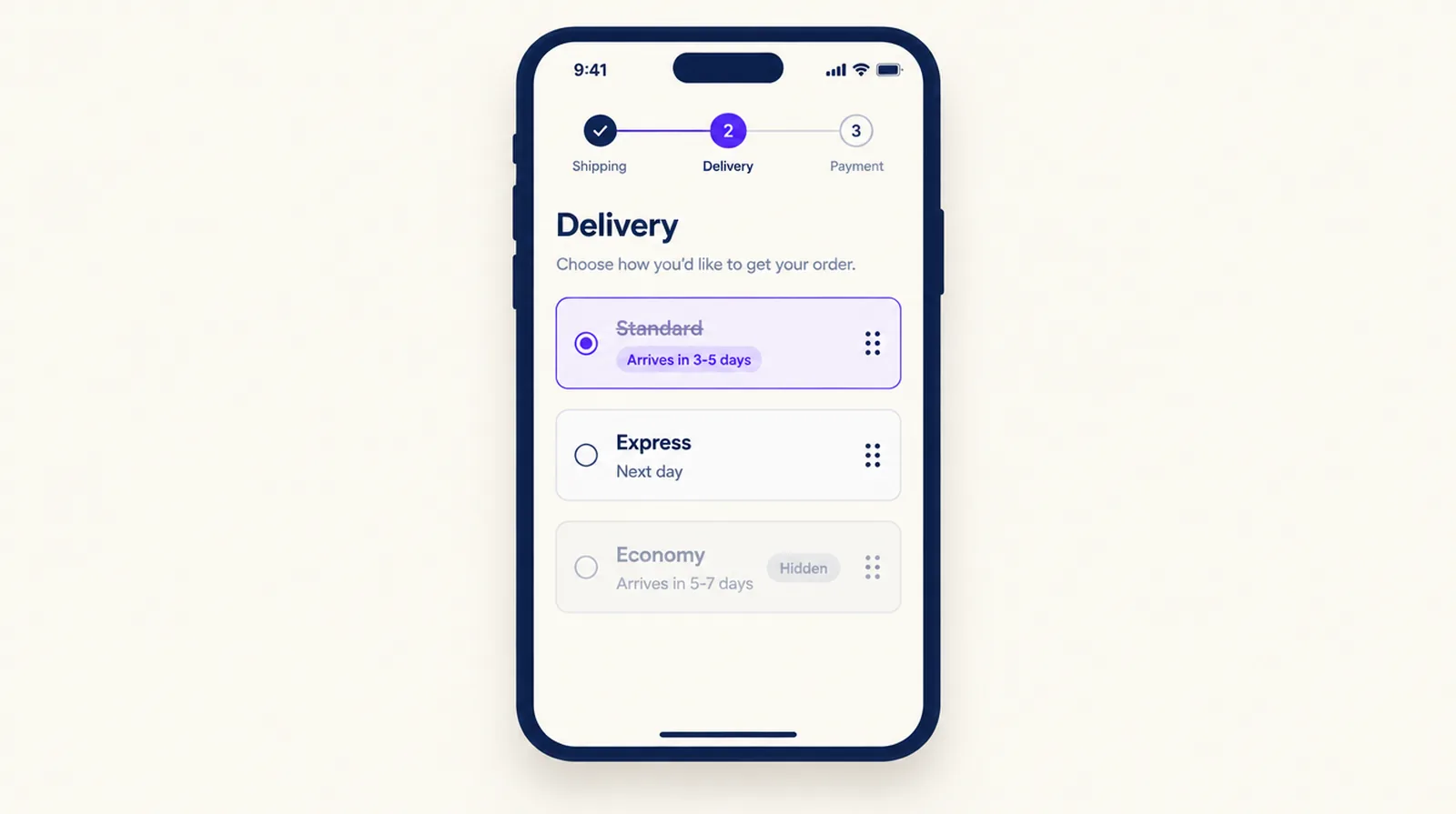
Put the last order date in the name of each shipping option, because that's the line the buyer is reading when they decide whether a gift will arrive in time. It works on every Shopify plan. On Shopify Plus you can add a banner inside checkout as well. Christmas Day is a Friday this year. Whatever your own dates turn out to be, the wording has to change the morning each one passes, so nobody pays for standard shipping on December 22 thinking it will make it. You can do that by hand, or set it up once with dated rules.
Work out one date for each delivery option
Start with each carrier's published holiday dates, then take off your own packing time. If the carrier needs the parcel by Thursday and you need two business days to pack, the last safe order day is Tuesday. Do the sum for every option you show at checkout, including local delivery and in-store pickup if you offer them.
Shopify's manual delivery dates do the same sum: your fulfillment time plus the carrier's transit time, with Monday to Friday as business days and a 12 pm cutoff in the shipping origin's time zone. If you pack more slowly in December, update the fulfillment time in your settings too.
What Shopify shows without an app
When you add a flat rate under Settings > Shipping and delivery, Shopify displays the name you type to customers at checkout. So you can change "Standard" to "Standard, order by Dec 14 for Christmas" today, with nothing installed. It stays that way for every buyer in the zone until you edit it back.
A flat rate can also show a transit time, such as 3 to 5 days, but that leaves out your processing time.
Shopify can also show estimated delivery dates, under Settings > Shipping and delivery > Estimated delivery dates, where you choose automated or manual dates. Manual dates need a fulfillment time and eligible rates, such as flat rates with a transit time in Canada, the US, the UK, France, Italy, Spain, Germany and Australia. If checkout mixes eligible and ineligible rates, no dates show at all. Where they do show, the buyer still has to compare a date range with December 25 in their head, which is why a plain "order by" date in the name helps.
For local pickup, the expected pickup time you set for each location is shown at checkout under Pick up.
Rename rates with a rule, on any Shopify plan
A shipping method rule in Smart Checkout Widgets renames delivery options after Shopify has calculated them, so it works on anything in the list, carrier-calculated rates included. Rules run as Shopify Functions, which every Shopify plan can use, and one of the app's templates adds delivery times to a rate's name.
A rule matches any part of the displayed name and ignores case. A rename on "Standard" catches "Standard Shipping" and "Standard International", so check what else contains the word. The Apply to setting limits a rule to one kind of option: shipping rates, local delivery, pickup points or local pickup locations. That lets you rename a pickup location to "Collect in store, order by Dec 23" without touching a shipping rate that shares part of its name. Renaming changes the label only. The price and the carrier stay the same.
Rates from a carrier or a shipping app keep the carrier's name. Shopify puts it in front of whatever name the rule sets, and apps can't remove it, so renaming a UPS rate to "Standard, order by Dec 14" shows "UPS Standard, order by Dec 14" at checkout. Flat rates you created in Shopify have no carrier name, so they show exactly what you typed. Check the full line on a phone, because the carrier name makes it longer.
Conditions decide when a rule applies, and they include country, state or province and postcode. That matters when remote areas need an earlier date: one rule for most addresses, another for the postcodes your carrier reaches slowly. The guide to shipping rates by postcode covers ranges. Conditions also include day of week and date, in your store's local time.
Rules apply as soon as you save, and a date condition lets you set up the switch in advance. Make one rule that renames Standard to "Standard, order by Dec 14" while the date is before 2026-12-15, and a second that renames it to "Standard, arrives after Christmas" when the date is on or after 2026-12-15. The second takes over that morning in your store's time zone, and nobody has to remember to log in. Do the same for each option with its own date. "Is between" covers a window, such as 2026-12-15 to 2026-12-24. For the full set of rename, hide and reorder rules, see hide, rename and reorder shipping methods.
Add a banner inside checkout on Shopify Plus
Shopify only lets apps add blocks to the information, shipping and payment steps on Plus stores. If you're on Plus, a Custom banner widget puts an image into checkout with text above, below or beside it, and an optional link to your holiday shipping page. For a single line of text, use Custom content instead.
Create the widget under Widgets in the app. Then open Settings > Checkout > Customize in Shopify, choose the Checkout page, click Add block and pick Custom banner from the Smart Checkout Widgets blocks. Put it near the delivery section and save.
Banners and Custom content have optional Show from and Show until dates, in your store's time zone. Make one banner that runs until December 14 and a second that starts on December 15, and leave the block's Widget ID empty. The block shows whichever one's dates include today, so they hand over on their own. You can still edit the text by hand: saved changes show up without publishing the checkout again. When the season is over, disable the widgets. That takes them off the page at once and keeps their settings for next year. If a banner crowds the order summary on a phone, you can hide the block on mobile, tablet or desktop in the checkout editor.
The same widgets work on the Thank you and Order status pages on every Shopify plan from Basic up. They can't change the buyer's choice there, but they can tell someone who ordered after the cutoff when the parcel will really leave. I'd rather a customer read that on the Thank you page than work it out from a tracking link on December 24.
Wording you can copy
Put the date near the front and keep each name short enough to read on a phone. These use example dates, so swap in your own:
- Standard shipping, order by Mon Dec 14 for Christmas
- Express, order by Fri Dec 18 for Christmas
- Pick up in store, order by Dec 23
- Standard shipping, arrives after Christmas (once the standard date has passed)
For the banner: "Last days for Christmas delivery: standard Dec 14, express Dec 18. Pick up in store until Dec 23."
The week before each cutoff
- Check every carrier's date against your list one more time.
- Place a test order with a real address in each region that has its own date, and read the delivery step on a phone.
- Give your support team the same dates, so their replies match checkout.
For discounts, QA and rollback during the peak, work through the Black Friday checkout checklist.
Frequently asked questions
How do I add a shipping cutoff message to Shopify checkout?
Put the last order date in the shipping option's name, either by editing your flat rate names in Settings > Shipping and delivery or with a rename rule in an app. On Shopify Plus you can also add a banner block in checkout. Change both when each cutoff passes, by hand or with dated rules and banner dates set up in advance.
Can I show a Christmas shipping deadline without Shopify Plus?
Yes, in the shipping rate names. Flat rate names are shown at checkout on every plan, and Smart Checkout Widgets shipping rules can rename any delivery option on every plan. Only a banner block inside the checkout page needs Plus.
Does Shopify show delivery dates at checkout?
Only if you turn on estimated delivery dates under Settings > Shipping and delivery and your rates are eligible. Manual dates need a fulfillment time and eligible rates, and if checkout mixes eligible and ineligible rates, no dates show.
Can a checkout banner turn itself off after the cutoff?
Yes. Give the Smart Checkout Widgets banner a Show until date and it disappears after that day, in your store's time zone. A second banner with a Show from date can take its place in the same block.
Does renaming a shipping rate change the price?
No. A rename changes only the label the buyer sees. The rate, its price and the carrier stay the same.