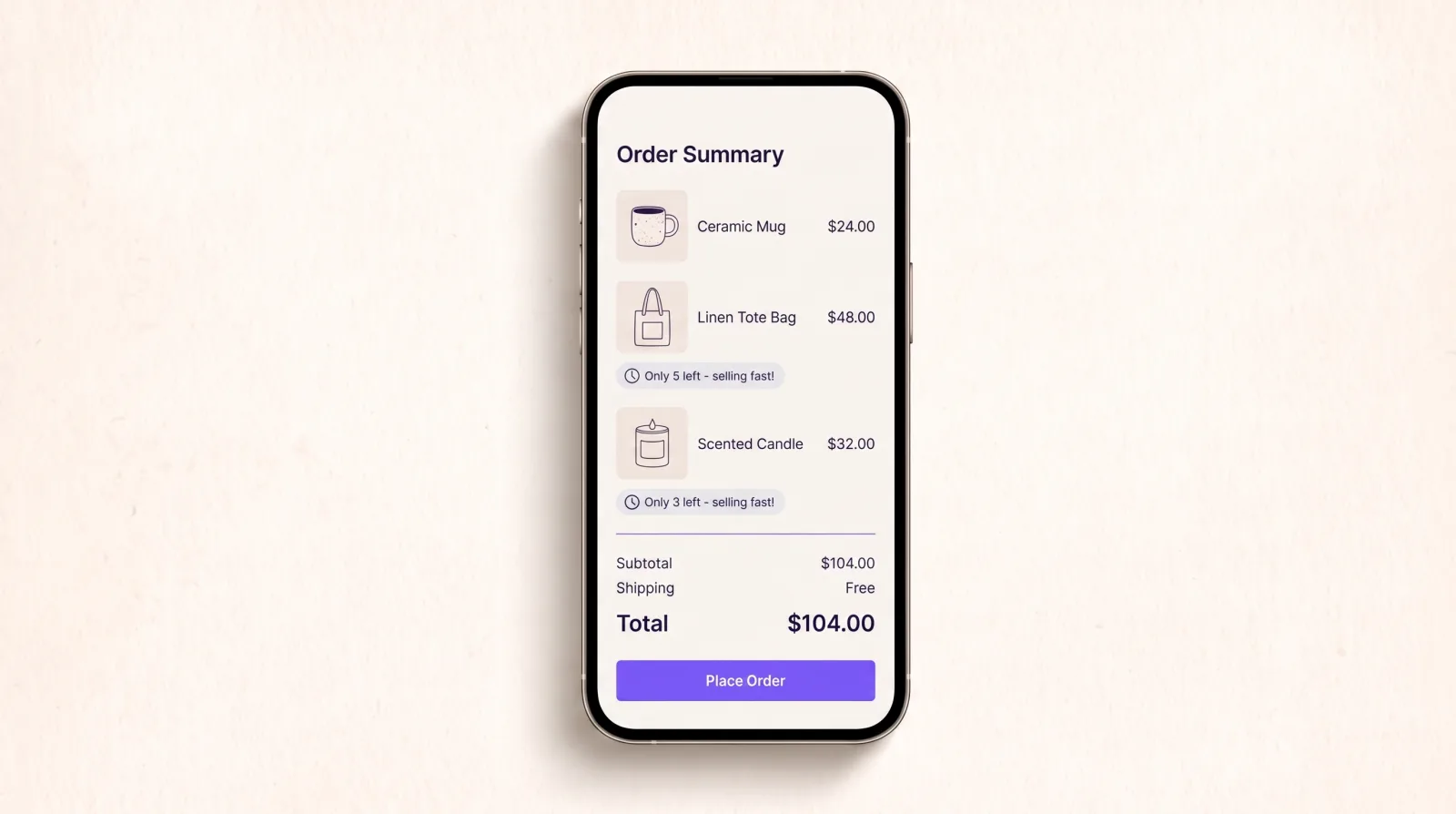
When a shopper sees that only a few of an item are left, they're less likely to wander off and come back later. Most stores show that on the product page and nowhere else. Smart Checkout Widgets can show it in checkout too, under each item in the order summary, using your real inventory count. It's part of the Pro plan and needs Shopify Plus, because it runs on the checkout page.
What the shopper sees
Under any item whose stock is at or below a number you pick, a small badge appears, for example Only 3 left - selling fast!. Items with plenty of stock show nothing, so the badge only turns up where it's true and useful.
The count is always real
Fake scarcity is easy to spot and it costs trust, so the widget never makes a number up:
- The number is the variant's actual inventory in Shopify, read when checkout loads.
- Variants that don't track inventory never show a badge.
- Variants set to keep selling when out of stock never show one either, because there is no real limit.
- Free gifts added by Smart Checkout Widgets are skipped.
Threshold: show when stock is at or below 5
What you can change
- The threshold, any whole number from 1 to 1,000. The default is 10.
- The message.
{{count}}is replaced with the number left, so "Only {{count}} left - selling fast!" becomes "Only 3 left - selling fast!". - The colour: neutral grey, or red for a stronger signal.
- The icon: a clock, a lightning bolt, an alert sign, or none.
Set it up
- In Smart Checkout Widgets, open Widgets and create a Stock urgency widget. Set the threshold, message, colour and icon, and save.
- In Shopify, go to Settings > Checkout > Customize. In the Apps panel, add the Smart Checkout Widget block to the checkout page.
- Drag the block under Order summary > Items in cart, so it sits under each line item, and pick your widget in the block's settings. Save.
When it helps, and when it doesn't
A low-stock note works best on items people already wanted and might put off buying: limited runs, seasonal products, popular sizes. It does little for everyday items you always restock, and a badge on every line starts to look like a trick. A threshold well below your normal stock level keeps the badge rare enough to mean something.
Frequently asked questions
Can Shopify show low stock in checkout?
Not on its own. Shopify themes can show stock on product pages, but checkout has no built-in low-stock message. An app with a checkout UI extension can add one on Shopify Plus.
Is the number real?
Yes. Smart Checkout Widgets reads the variant's inventory from Shopify. Variants that don't track inventory, or that keep selling when out of stock, never show a badge.
Does it need Shopify Plus?
Yes. The badge runs on the checkout page, and Shopify only lets apps add to the checkout page on Plus. It is part of the Smart Checkout Widgets Pro plan.
Can I change the wording?
Yes. Write any message and use {{count}} where the number should go. You can also choose a grey or red badge and a clock, lightning, alert or no icon.